



Turn a Raspberry Pi into a multi-service home server with Docker and Portainer
Learn how to transform a Raspberry Pi into a powerful, private, self-hosted multi-service home server using Docker and Portainer.
In this complete guide, we show how a single Raspberry Pi device can run multiple useful services at the same time: file storage, password management, smart home control, local AI models, and secure remote access — all without relying on cloud subscriptions or third-party providers.
You stay in control of your data.
Why a Raspberry Pi as a multi-service server?
Despite its compact size, a Raspberry Pi is capable of running multiple services reliably when combined with:
- A 64-bit operating system
- SSD storage
- Containerized services with Docker
By using containers, we can isolate each service, avoid dependency conflicts, simplify updates, and keep the system maintainable over time.
What is Docker?
Docker is a platform that packages applications and all their dependencies into isolated units called containers.
Each container:
- Runs independently
- Uses its own libraries
- Can be started, stopped, updated, or removed without affecting others
This prevents conflicts between services and makes your system reproducible and robust, which is essential for a multi-service server.
What is Portainer?
Portainer is a lightweight web-based management platform for containerized applications.
With Portainer, you can:
- Deploy services using Docker compose files
- Manage containers, stacks, volumes, and networks
- Monitor resource usage
- Avoid working directly from the command line for most tasks
Thanks to Portainer, managing a home server becomes much more accessible, especially for users without advanced system administration knowledge.
What you’ll need
For this project, we are using our self-developed Pi Hack dev board, featuring:
- Raspberry Pi Compute Module 5 with 8 Gb of Ram and 32 Gb of EMMc memory
- 256 GB NVMe SSD (system and data drive)
This setup provides excellent performance and reliability for Docker-based workloads.
You can follow this guide using any Raspberry Pi model. However, we strongly recommend using an external SSD instead of a microSD card for better performance, more storage, and long-term reliability.
Before you start: important notes
- Never expose services directly to the public internet without HTTPS and authentication
- In this guide, services are configured for local network usage
- Remote access is handled securely via VPN
- Always change default passwords. Use strong, unique credentials for every service
Important concept: one IP, many services
Your Raspberry Pi has a single local IP address, for example:
192.168.1.50
Multiple services can run on the same IP by using different ports, such as:
192.168.1.50:8053

192.168.1.50:8082

192.168.1.50:8096
As long as no two services use the same port, they can coexist safely.
Vaultwarden is a special case and will use HTTPS on port 443, which we handle via Nginx (we’ll get there)
Services installed in this project
Each service was selected based on usefulness, performance, and compatibility with Raspberry Pi hardware:
- Vaultwarden: self-hosted password manager (security & productivity)
- Nextcloud: private cloud storage, contacts, and calendar (productivity)
- Ollama: run lightweight AI models locally (AI & experimentation)
- Home Assistant: smart home control platform (automation)
- WireGuard VPN: secure remote access to your home network (security)
First steps: system setup
- Install Raspberry Pi OS Lite (64-bit) Desktop is not required.
- Configure Raspberry Pi Connect or enable SSH in Raspberry Pi Imager.
- Find the IP address:
hostname -I - Connect via SSH:
ssh pi_username@IP_ADDRESS - Update the system:
sudo apt update

sudo apt upgrade -y
Assign a static IP address to your device
Run:
sudo nmtui
- Select your active connection (
wlan0oreth0) - Set IPv4 to Manual
- Assign:
- Static IP
- Gateway (router IP)
- DNS server
Save and reboot:
sudo reboot
Installing Docker
We already have a detailed step‑by‑step guide explaining how to install and configure Docker on Raspberry Pi. We recommend following that guide first. Once Docker is installed and running correctly, return here to continue with the installation.
Installing Portainer
Run the installation command:
docker pull portainer/portainer-ce:latest
Create a Docker volume for Portainer data:
docker volume create portainer_data
Run Portainer using the command:
docker run -d -p 8000:8000 -p 9443:9443 --name=portainer --restart=always -v /var/run/docker.sock:/var/run/docker.sock -v portainer_data:/data portainer/portainer-ce:latest
Access Portainer. Open a browser window and type:
https://YOUR_IP_ADDRESS:9443
Follow the initial setup, log in and you’ll be ready to install your first service!
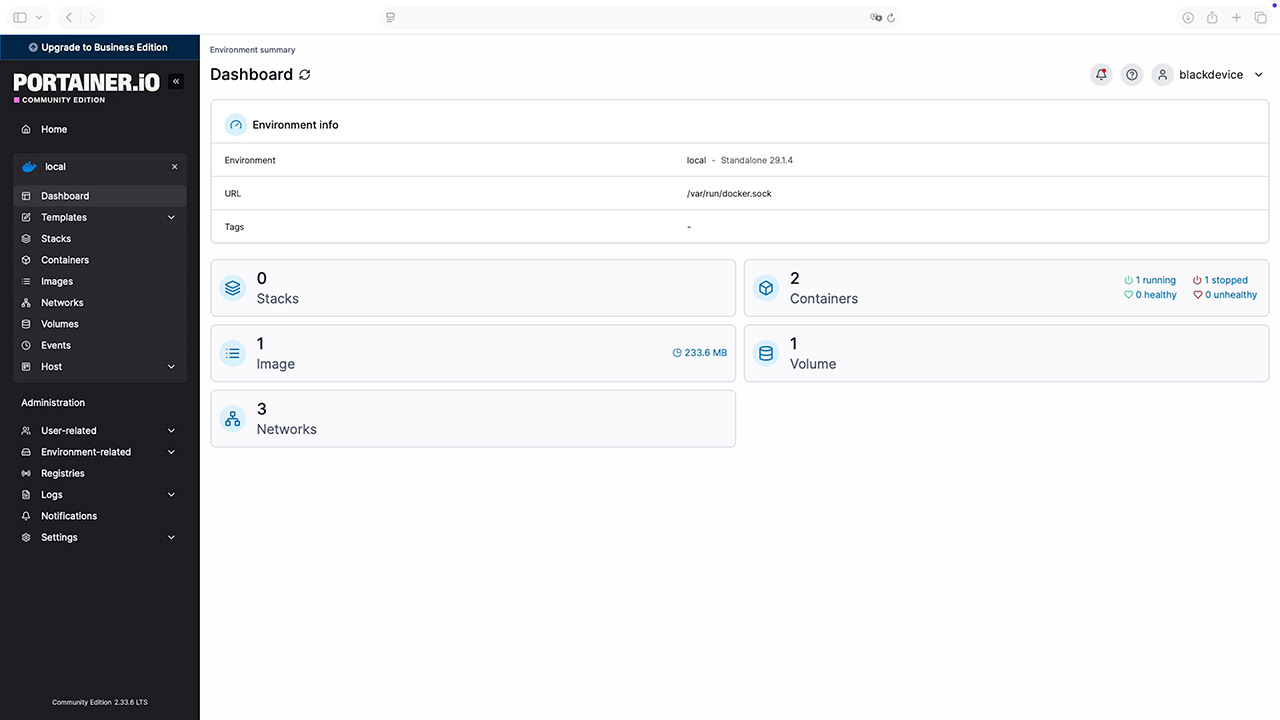
⚠️ Important: When copying Docker stacks from this article, always copy them directly from the code block and paste them unchangedinto Portainer.YAML is indentation-sensitive. Any extra spaces or formatting changes may cause deployment errors.
Installing Vaultwarden (self-hosted password manager)
Vaultwarden is a lightweight, self-hosted implementation of the Bitwarden server API. It is fully compatible with official Bitwarden apps and browser extensions, but runs on your own infrastructure.
Key advantages:
- Full control over your passwords
- No subscriptions
- Compatible with all Bitwarden clients
- Very low resource usage
Because it manages sensitive data, Vaultwarden must always be served over HTTPS.
Prepare directories
Via SSH paste the following commands:
sudo mkdir -p /srv/docker/vaultwarden

sudo mkdir -p /srv/docker/nginx/conf

sudo mkdir -p /srv/docker/nginx/certs

sudo chown -R $USER:$USER /srv/docker
Create Docker network
In Portainer:
- Networks → Add network
- Name: vaultwarden_net
- Driver: bridge
Deploy Vaultwarden stack
Deploy the stack in Portainer → Stacks → Add stack:
Name it: vaultwarden
Paste the install script in the web editor:
Note: Change PI_IP for your device IP address.
version: "3.8"

services:
  vaultwarden:
    image: vaultwarden/server:latest
    container_name: vaultwarden
    restart: unless-stopped
    environment:
      WEBSOCKET_ENABLED: "true"
      DOMAIN: "https://PI_IP"
      TZ: Europe/Madrid
    volumes:
      - /srv/docker/vaultwarden:/data
    expose:
      - "80"
      - "3012"
    networks:
      - vaultwarden_net

networks:
  vaultwarden_net:
    external: true
Press «Deploy stack».
Generate a self-signed SSL certificate
Enter the following commands via SSH:
sudo mkdir -p /srv/docker/nginx/certs

cd /srv/docker/nginx/certs
sudo openssl req -x509 -nodes -days 365 \

-newkey rsa:2048 \

-keyout vaultwarden.key \

-out vaultwarden.crt
Note: Use the Raspberry Pi IP as Common Name when prompted.
Configure Nginx
Edit the config file through SSH:
nano /srv/docker/nginx/conf/vaultwarden.conf
And paste:
server {

listen 443 ssl;

server_name _;

ssl_certificate /etc/nginx/certs/vaultwarden.crt;

ssl_certificate_key /etc/nginx/certs/vaultwarden.key;

location / {

proxy_pass http://vaultwarden:80;

proxy_set_header Host $host;

proxy_set_header X-Forwarded-Proto https;

proxy_set_header X-Real-IP $remote_addr;

}

location /notifications/hub {

proxy_pass http://vaultwarden:3012;

proxy_http_version 1.1;

proxy_set_header Upgrade $http_upgrade;

proxy_set_header Connection "upgrade";

}

}
Install Nginx
Deploy the stack in Portainer → Stacks → Add stack:
Name it: nginx_vaultwarden
Paste the install script in the web editor:
version: "3.8"

services:
  nginx:
    image: nginx:latest
    container_name: nginx_vaultwarden
    restart: unless-stopped
    ports:
      - "443:443"
    volumes:
      - /srv/docker/nginx/conf:/etc/nginx/conf.d:ro
      - /srv/docker/nginx/certs:/etc/nginx/certs:ro
    networks:
      - vaultwarden_net

networks:
  vaultwarden_net:
    external: true
Press «Deploy stack».
If everything has gone correctly, you should be able to access:
https://YOUR_IP_ADDRESS
- Your browser may warn about the certificate (this is normal)
- Accept the warning
- Vaultwarden should load without any HTTPS errors
- There should be no conflicts with other services
- Vaultwarden does not use ports on the host
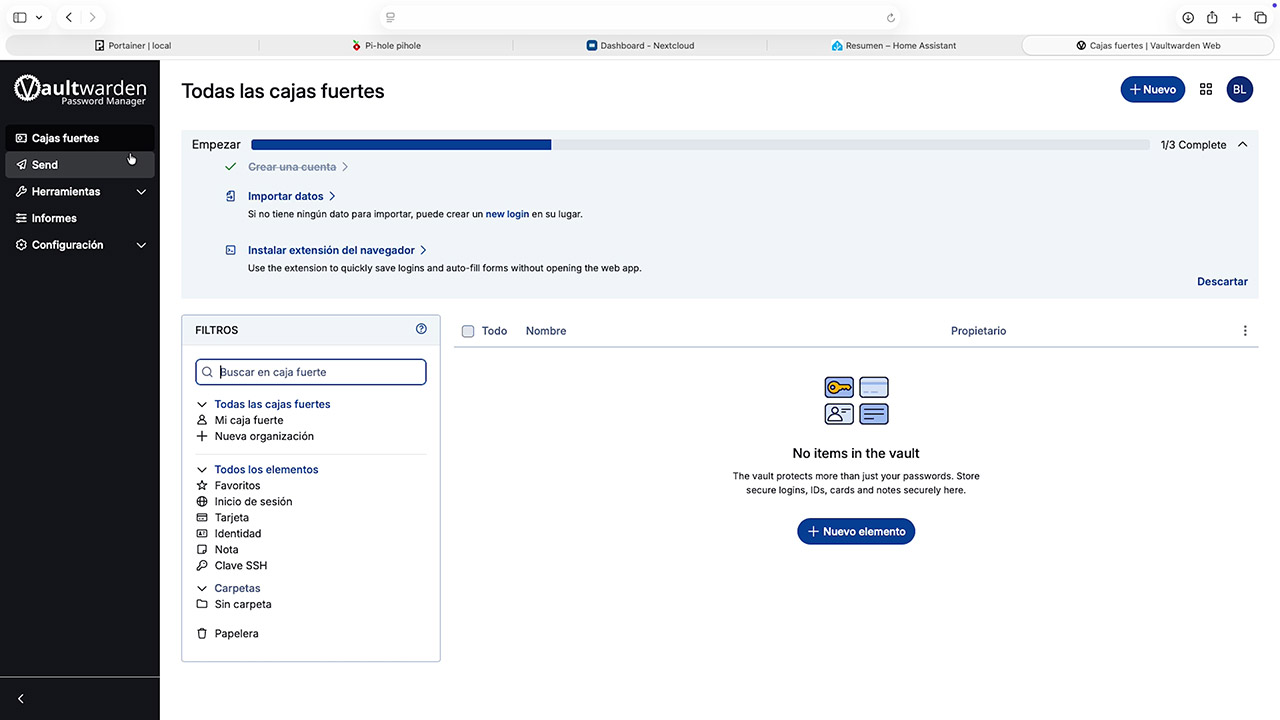
Once inside the Vaultwarden panel, you can start creating and organizing your passwords, all stored securely on your self-hosted server.
On the official Vaultwarden website, you can find comprehensive information about all the features and settings you can configure to customize your experience and get the most out of this tool.
Installing Nextcloud (private cloud)
The next service we’re going to set up on our server is a private cloud to store, manage, and share files within our local network. For this, we will use Nextcloud.
Deploy the stack in Portainer → Stacks → Add stack:
Name it: nextcloud
Paste the install script in the web editor:
Note: Remember to change the placeholder passwords
version: "3.8"

services:
  db:
    image: mariadb:10.11
    container_name: nextcloud_db
    restart: unless-stopped
    environment:
      MYSQL_ROOT_PASSWORD: CHANGE_ROOT_PASS
      MYSQL_DATABASE: nextcloud
      MYSQL_USER: nextcloud
      MYSQL_PASSWORD: CHANGE_NEXTCLOUD_DB_PASS
    volumes:
      - /srv/docker/nextcloud/db:/var/lib/mysql

  app:
    image: nextcloud:latest
    container_name: nextcloud
    restart: unless-stopped
    ports:
      - "8082:80"
    volumes:
      - /srv/docker/nextcloud/app:/var/www/html
    environment:
      MYSQL_HOST: db
      MYSQL_DATABASE: nextcloud
      MYSQL_USER: nextcloud
      MYSQL_PASSWORD: CHANGE_NEXTCLOUD_DB_PASS
    depends_on:
      - db
Press «Deploy stack».
Once ready, open a browser window and go to your device’s IP followed by port 8082. In our case:
http://192.168.6.161:8082
Complete the installation by creating an admin account and following the steps in the initial setup. Once finished, your new self-hosted, completely free private cloud will be ready, allowing you to manage your files easily. For more information about the options Nextcloud offers, visit the official website and explore the documentation to discover everything you can do with this powerful tool.
Installing Ollama (Local AI models)
Now let’s see how you can run small artificial intelligence models locally using Ollama. This client tool allows you to download and run LLMs on your own device, test their performance using text prompts, all without relying on any cloud service or sharing your data with anyone—everything runs entirely locally.
Deploy the stack in Portainer → Stacks → Add stack:
Name it: ollama
Paste the install script in the web editor:
version: "3.8"

services:
  ollama:
    image: ollama/ollama:latest
    container_name: ollama
    environment:
      OLLAMA_HOST: 0.0.0.0:11434
    ports:
      - "11434:11434"
    volumes:
      - /srv/docker/ollama:/root/.ollama
    restart: unless-stopped
Press «Deploy stack».
Once the process is complete, we need to install the AI model we want to use. In previous tutorials, we tested the excellent performance of Gemma3, so we’ll run it as a test.
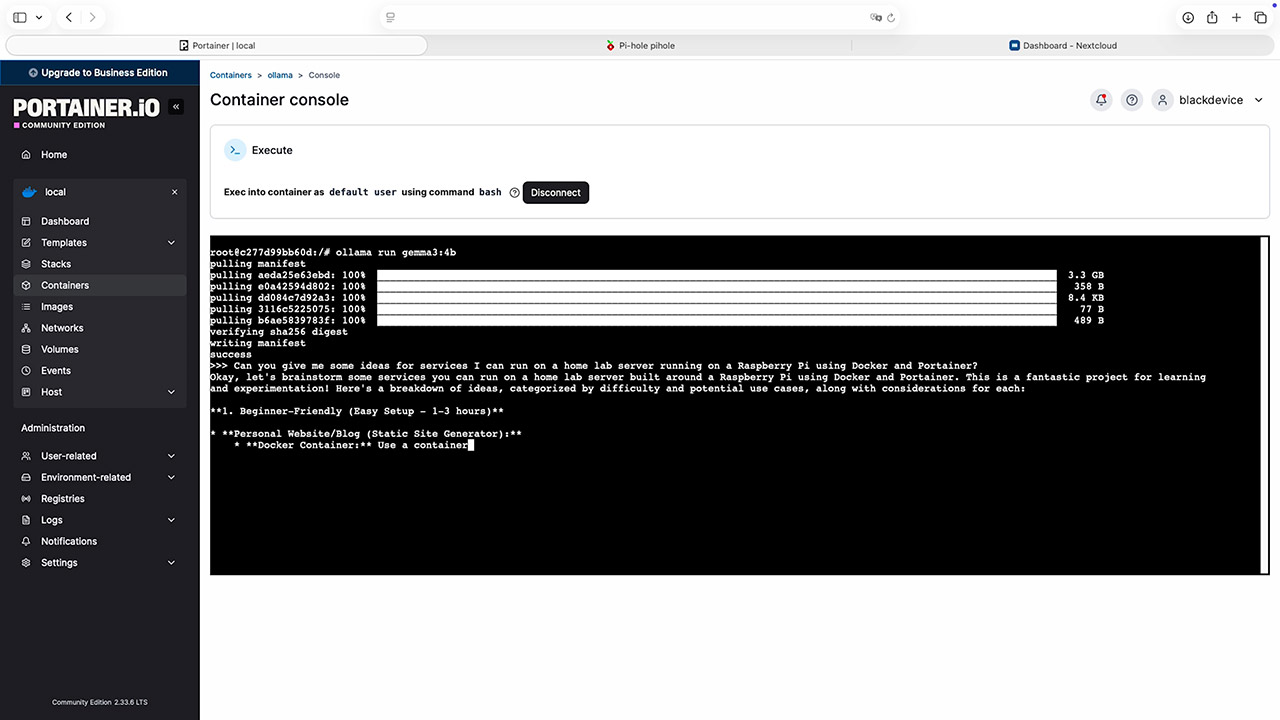
To do this, go to the Containers section, select Ollama, and open the Console. This will give you a terminal to interact with Ollama via text commands. Then, run the command to start the AI model you want to test. In this case:
ollama run gemma3:4b
The model will be downloaded, and once the download is complete, you can start interacting with it using text prompts.
On the official Ollama website, you can find the full list of models available for download and execution, as well as detailed instructions.
Installing Home Assistant
For those of you with smart devices, sensors, or other connected hardware on your local network, Home Assistant allows you to control your smart home and manage all compatible devices. For example, you can schedule lights, cameras, and sensors to turn on and off, control TVs and other household appliances, and manage different rooms in your home independently.
To install Home Assistant, deploy the stack in Portainer → Stacks → Add stack:
Name it: homeassistant
Paste the install script in the web editor:
version: "3.8"

services:
  homeassistant:
    image: ghcr.io/home-assistant/home-assistant:stable
    container_name: homeassistant
    network_mode: host
    environment:
      TZ: Europe/Madrid
    volumes:
      - /srv/docker/homeassistant:/config
      - /etc/localtime:/etc/localtime:ro
    restart: unless-stopped
Press «Deploy stack».
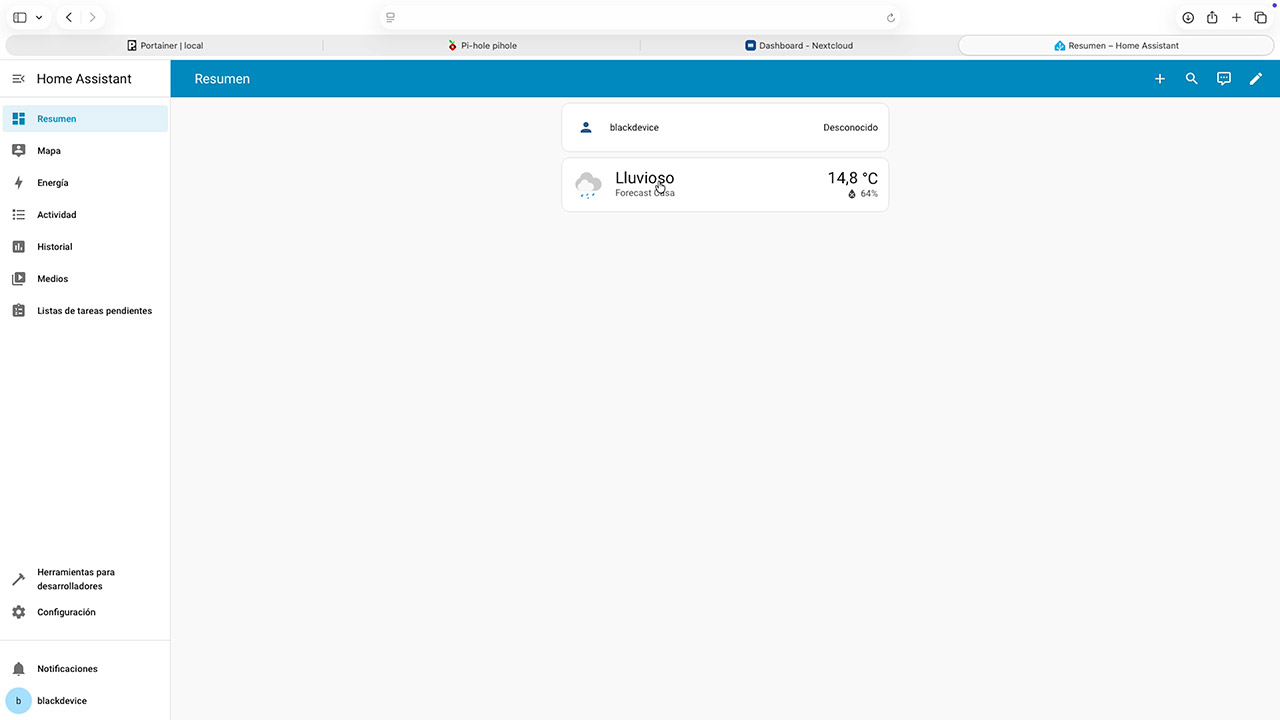
Once installed, you can connect to your new Home Assistant instance using your device’s IP address and port 8123. In our case: http://192.168.6.161:8123
Follow the initial setup steps and start organizing and controlling your smart home. On the official website, you’ll find plenty of information, ideas, and guides to help you get the most out of this tool and your connected devices.
Installing WireGuard VPN
A VPN server allows you to securely access your home network from outside, or to use it as a VPN client to encrypt the traffic of your home network or individual devices for security and/or privacy. Essentially, it routes your traffic through a remote server, making it appear as if you are connecting from another location and protecting your data on public Wi-Fi networks—something essential for remote work and streaming, for example.
For this setup, we will use WireGuard, a modern, open-source VPN protocol known for being extremely fast, secure, and simple. It is designed to create virtual private networks efficiently and outperforms older VPN protocols.
To install WireGuard on our multi-service server, follow these steps:
-
- Connect to your device via SSH
Create the directories for the service and assign permissions to your user using the following commands:
sudo mkdir -p /srv/docker/wireguard

sudo chown -R $USER:$USER /srv/docker/wireguard
- In Portainer
deploy the stack in Portainer → Stacks → Add stack:Name it: wireguard
Paste the install script in the web editor:version: "3.8" services: wireguard: image: linuxserver/wireguard container_name: wireguard cap_add: - NET_ADMIN - SYS_MODULE environment: PUID: 1000 PGID: 1000 TZ: Europe/Madrid SERVERURL: auto SERVERPORT: 51820 PEERS: 1 PEERDNS: auto INTERNAL_SUBNET: 10.13.13.0 volumes: - /srv/docker/wireguard:/config - /lib/modules:/lib/modules ports: - "51820:51820/udp" sysctls: - net.ipv4.conf.all.src_valid_mark=1 restart: unless-stoppedPress «Deploy stack» and wait for WireGuard to be installed.
- Verify the container status
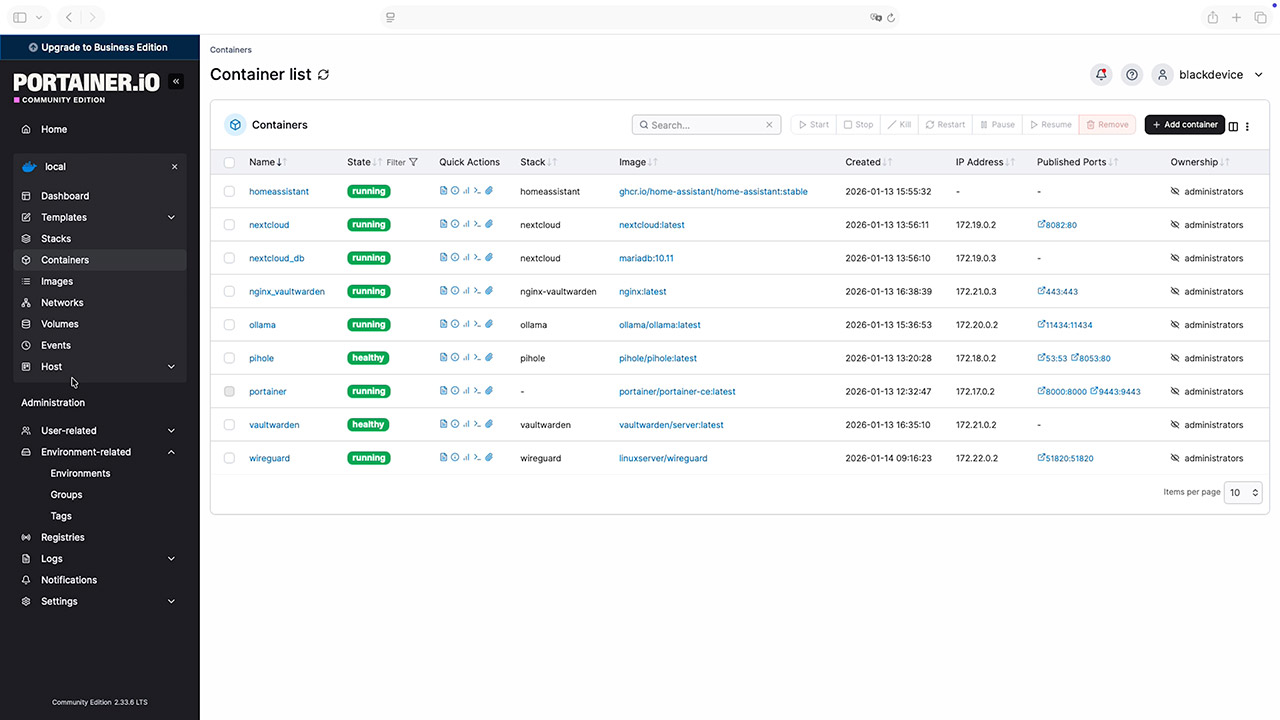
Go to Containers and make sure the WireGuard container is shown as “running.” - Verify client files via SSH
Using SSH, check that WireGuard has created the client files by running:
ls /srv/docker/wireguard/peer1 - Scan the QR code
You will need the filepeer1.png, which is a QR code. Scan it with your mobile device to configure the WireGuard app and create a tunnel to connect to your VPN. - Configure your router
What needs to be done
Open one UDP port only:
- External port: 51820
- Protocol: UDP
- Destination IP: Local IP of the Raspberry Pi
- Internal port: 51820
How to do it
- Access your router (usually at
192.168.1.1) - Look for:
- “Port forwarding”
- “NAT”
- “Port redirection”
- Create a new rule using the values above
⚠️ Do not open any other ports.
- Connect to your device via SSH
Your VPN server is now active. To connect to it from outside your local network and use it as if you were at home, you’ll need to download the WireGuard application available for mobile devices and computers, and configure a tunnel that links your device to your VPN server. This will allow you to securely access all the services running on your Raspberry Pi server from outside your local network.
On the official WireGuard website, you can find all the documentation you need to get the most out of this tool.
Final thoughts
With Docker and Portainer, a Raspberry Pi becomes a powerful, modular, and private multi-service server. This setup replaces multiple cloud services with a single self-hosted device — giving you full control over your data, your infrastructure, and your privacy.
At blackdevice, we believe great technology should be reliable, transparent, and empowering — and this project is a clear example of that philosophy in practice.
We encourage you to try this project yourself and share your setup with us! If you enjoy this type of content, take a look at the rest of our blog, subscribe to our mailing list, and check out the videos we publish on our YouTube channel.