


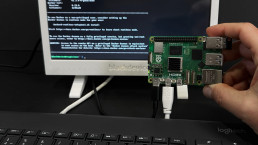
Docker on Raspberry Pi. Installation and practical guide
If you’ve followed any Raspberry Pi tutorial for self-hosting services like Home Assistant, local AI, private clouds or home servers, you’ve probably noticed a recurring pattern: Docker is everywhere. And for good reason.
Docker has become the easiest and most reliable way to install, run and maintain services on Raspberry Pi. Instead of manually configuring dependencies, users and system services, Docker lets you deploy complex applications in a clean, repeatable way — often with a single command. That makes it ideal for tutorials, experiments and long-running setups alike.
In this post we’ll cover everything you need before following any Docker-based Raspberry Pi guide.
We’ll explain what Docker actually is, why it works so well on Raspberry Pi devices, which OS and architectures you should use, and how to install it properly.
1) What is Docker, and why use it on Raspberry Pi?
Docker is a container platform that packages an application and its dependencies into an isolated unit (a container). For Raspberry Pi projects, Docker gives you:
- Isolation — one service per container keeps dependencies tidy.
- Easier tutorials & onboarding — share a
docker composefile and readers can spin up the stack with a single command. - Safer upgrades — roll back to a previous image if an update breaks things.
Containers rely on the host kernel, so images must be built for ARM architectures (armv7/arm64) or be multi-arch images that include ARM support.
2) Install Docker on Raspberry Pi step-by-step
Docker provides an official convenience script that automates the entire installation process. This method is ideal for learning, testing, and following tutorials where Docker is a prerequisite, as is often the case with Home Assistant, media servers or self-hosted services.
While this script trades some configurability for speed, it is maintained by Docker and widely used in the community.
Step 1: Run the Docker installation script
First, make sure your system is up to date:
sudo apt update && sudo apt upgrade -y
Then run the official Docker install script:
curl -fsSL https://get.docker.com | sudo sh
This script automatically:
- Detects your Raspberry Pi OS version and architecture
- Adds Docker’s official repository
- Installs Docker Engine, containerd and required dependencies
- Enables and starts the Docker service
Once it finishes, Docker is installed and running.
Step 2: Allow your user to run Docker without sudo
By default, Docker commands require root privileges. To avoid having to prefix every command with sudo, you can add your user to the docker group.
Run the following command:
sudo usermod -aG docker $USER
This adds your current user to the Docker group but does not apply immediately. You must log out and log back in, or reboot the Raspberry Pi.
Alternatively, you can apply the group change instantly with:
newgrp docker
Verify group membership
To confirm that your user belongs to the docker group:
groups
You should see docker listed in the output. If it is not, log out and back in before continuing.
Step 3: Verify the Docker installation
Now let’s confirm that Docker is working correctly.
Check the Docker version: docker --version
Then run Docker’s test container:
docker run hello-world
If everything is set up correctly, Docker will:
- Pull the
hello-worldimage - Start a container
- Print a confirmation message explaining what just happened
This confirms that:
- Docker Engine is running
- Your user permissions are correct
- Image downloads and container execution work as expected
At this point, Docker is ready to be used in tutorials and projects.
What is Docker Compose?
While Docker lets you run individual containers, most real-world Raspberry Pi setups involve multiple services working together. This is where Docker Compose comes in.
Docker Compose allows you to define an entire application stack — services, networks, volumes and environment variables — in a single YAML file. Instead of running long docker run commands, you describe your setup once and manage it with simple commands.
On modern Docker installations (including the quick install), Docker Compose is provided as an official plugin, and is used with:
docker compose
You can verify it is installed with:
docker compose version<
How Docker Compose is used in Raspberry Pi tutorials
A typical tutorial will include a docker-compose.yml file describing one or more services. For example:
version: "3.8"

services:
  app:
    image: example/service:latest
    ports:
      - "8080:80"
    volumes:
      - ./data:/data
    restart: unless-stopped
To start the stack, simply run:
docker compose up -d
Common Docker Compose commands you’ll use on Raspberry Pi:
- Start services:
docker compose up -d - Stop services:
docker compose down - View logs:
docker compose logs -f - Update containers:
docker compose pull

docker compose up -d
This approach is ideal for Raspberry Pi projects because it keeps setups reproducible, easy to update, and simple to document — exactly what you want when following or sharing tutorials.
Why we use this approach in our tutorials
At blackDevice, most Raspberry Pi guides rely on Docker and Docker Compose to avoid fragile manual installations. Once Docker is installed using this method, you can follow any Docker-based tutorial on the blog without repeating system-level setup steps.
This post acts as the foundation: install Docker once, verify it works, and from then on focus entirely on the services you want to run.
If you enjoy this type of content, take a look at the rest of our blog, subscribe to our mailing list, and check out the videos we publish on our YouTube channel.